Use Agentic Blue in Claude and ChatGPT
Search for candidates without leaving your chat. Describe the role in Claude or ChatGPT, and Agentic Blue finds people, checks each one against your requirements, and shows them as cards you can save.
Watch the one-minute video for your app:ClaudeChatGPT
What you can do
- Start a search from a job brief or a whole job ad, in your own words.
- See the people it finds, with what their public profile shows for each requirement: Shown, Not clear or Not shown.
- Change the search in plain words, like “only people at banks”, and search again.
- Save someone to the search project in your Agentic Blue workspace, with one press.
It runs on your own Agentic Blue account and plan. Every search also appears in your projects, so you can pick it up in the app.
The connector address
Both apps ask for this address when you add Agentic Blue. Copy it first:
Add it to Claude
- On claude.ai or in the Claude desktop app, open Customize, then Connectors.
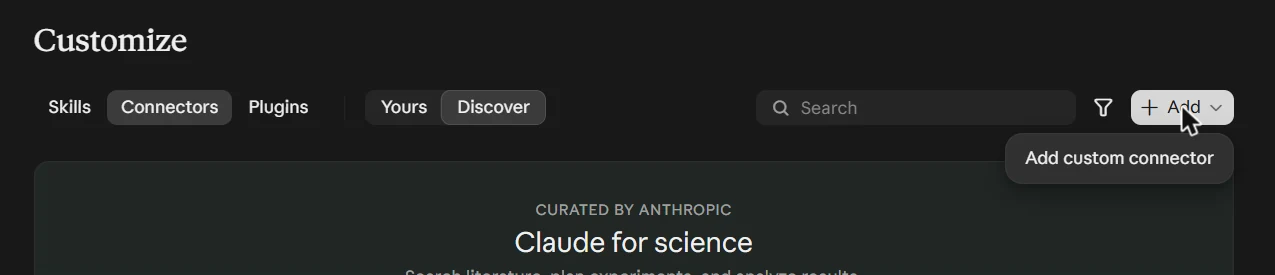
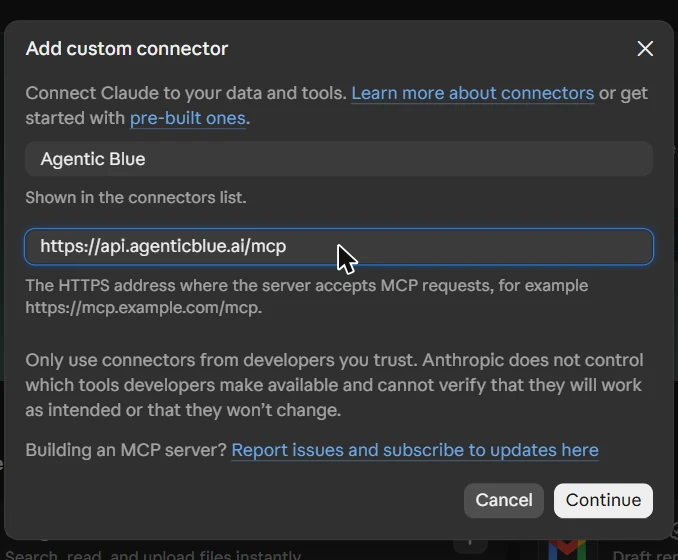
- Choose Add, then Add custom connector. Name it Agentic Blue, paste the address above, and choose Continue. Claude finds how to sign in by itself, so leave those settings as they are and choose Add.
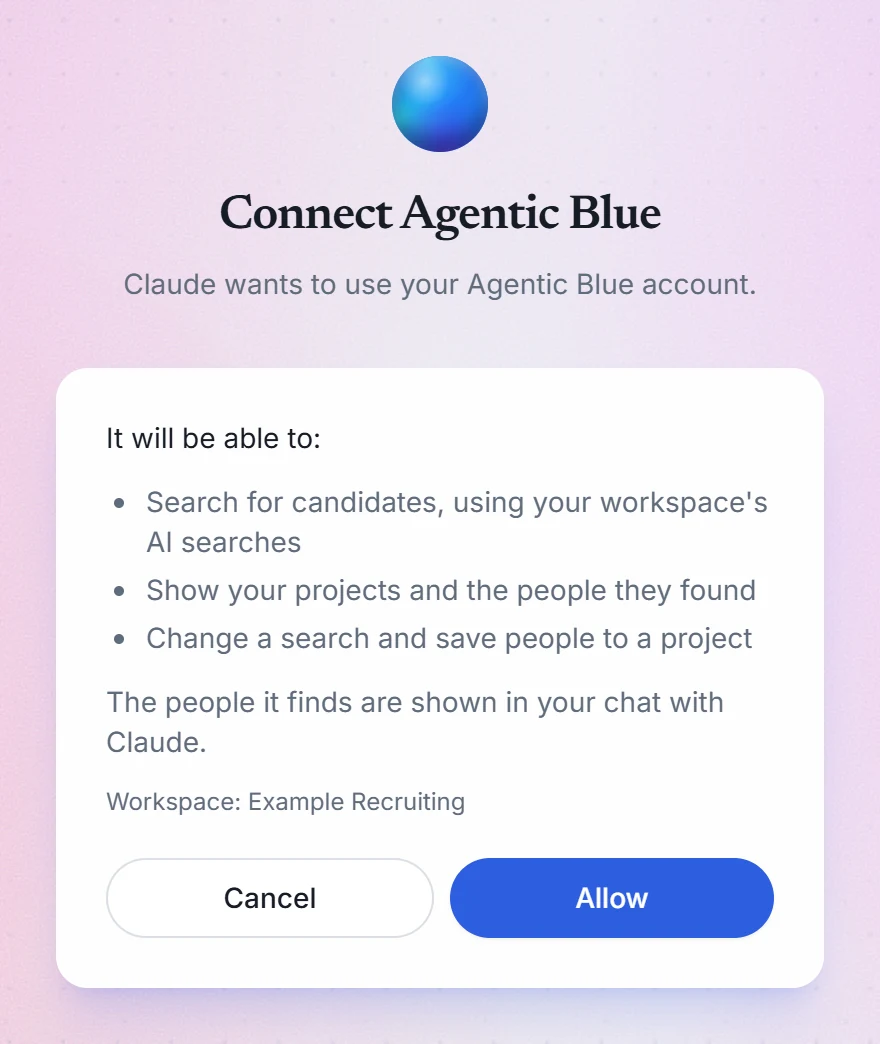
- Choose Connect. Sign in to Agentic Blue, check the workspace shown, and choose Allow.

Once it is connected, Agentic Blue shows under Yours with a tick. - In a new chat, ask for what you need, for example: “Use Agentic Blue to find a senior payroll accountant in Chicago with multi-state payroll experience.”
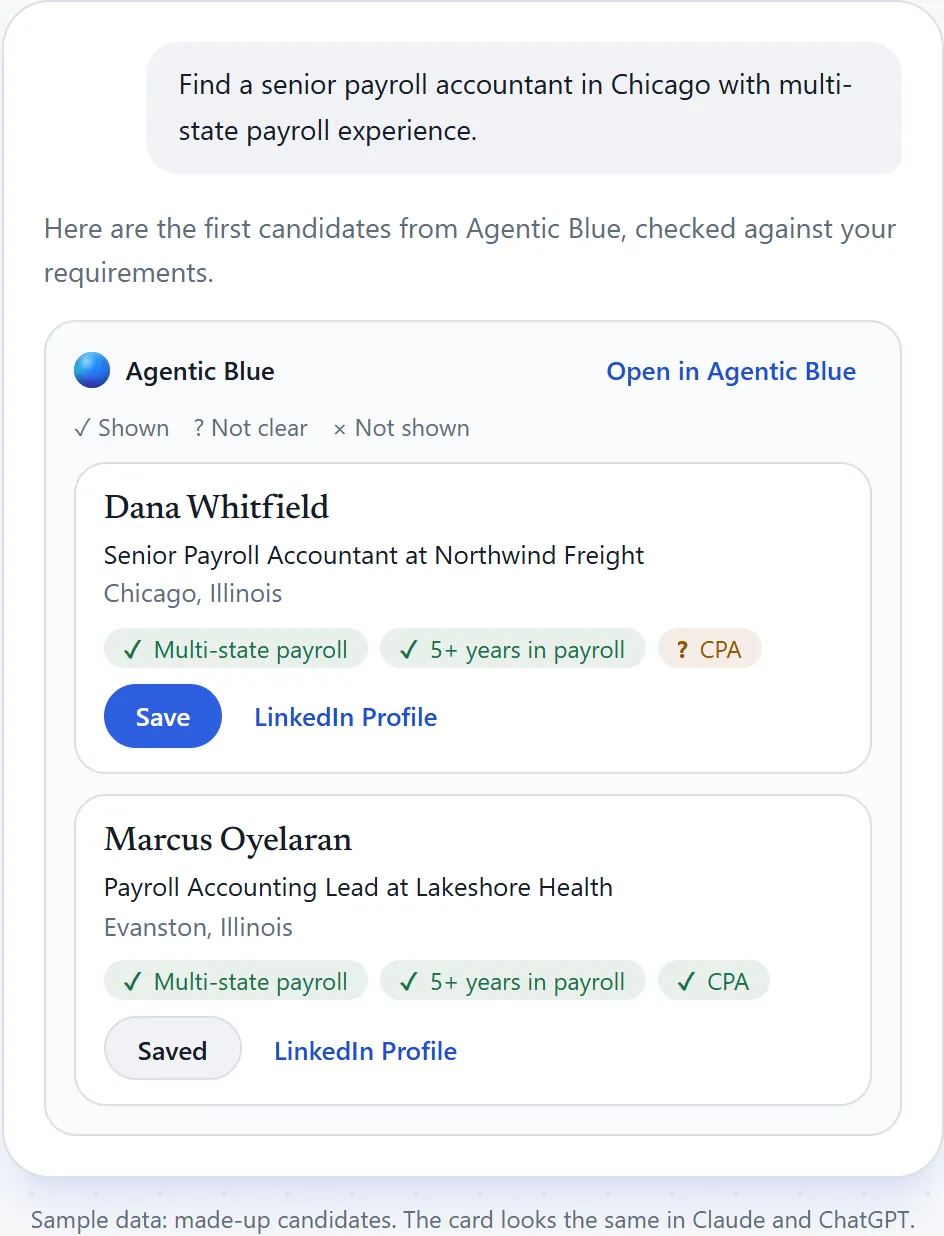
It works in Cowork too, so a longer task in Claude can include a candidate search. Each search it starts uses one of your AI searches, the same as in a chat. Claude’s Free plan allows one custom connector.
Add it to ChatGPT
- On chatgpt.com, open Plugins, then choose Add.
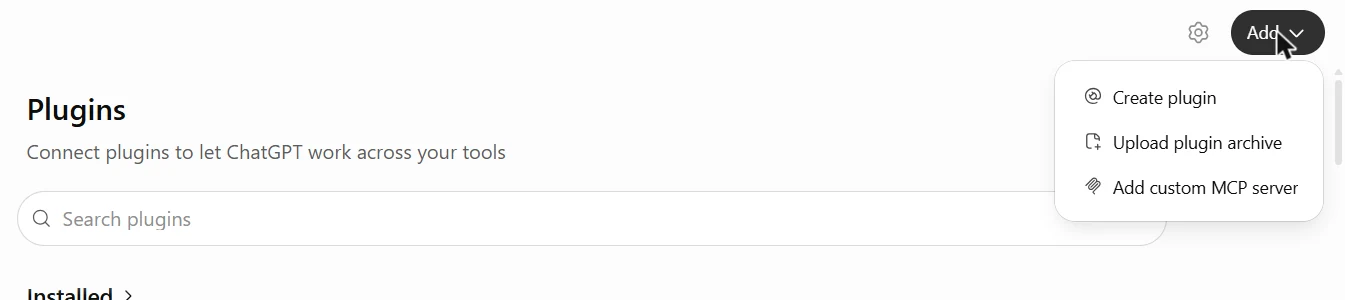
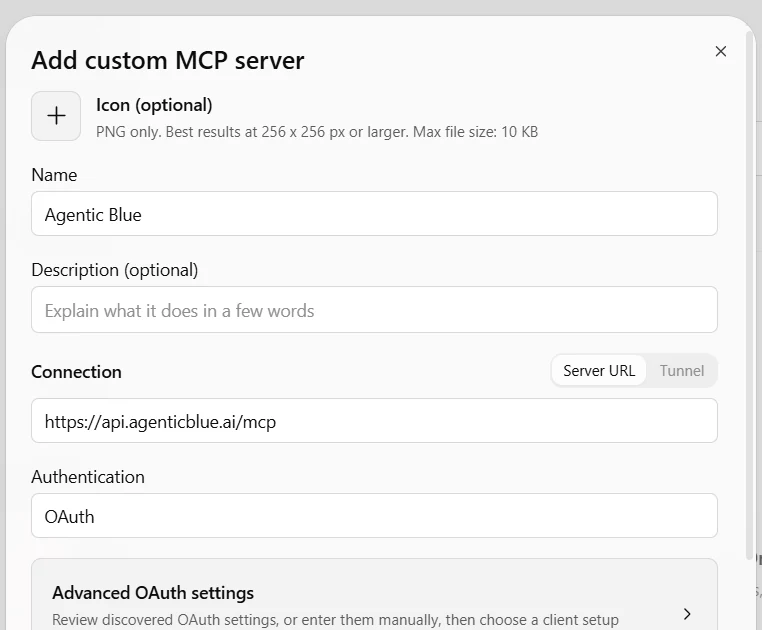
- Choose Add custom MCP server. Name it Agentic Blue, paste the address above, and leave Authentication on OAuth. Tick I understand and want to continue, then choose Create as a plugin.
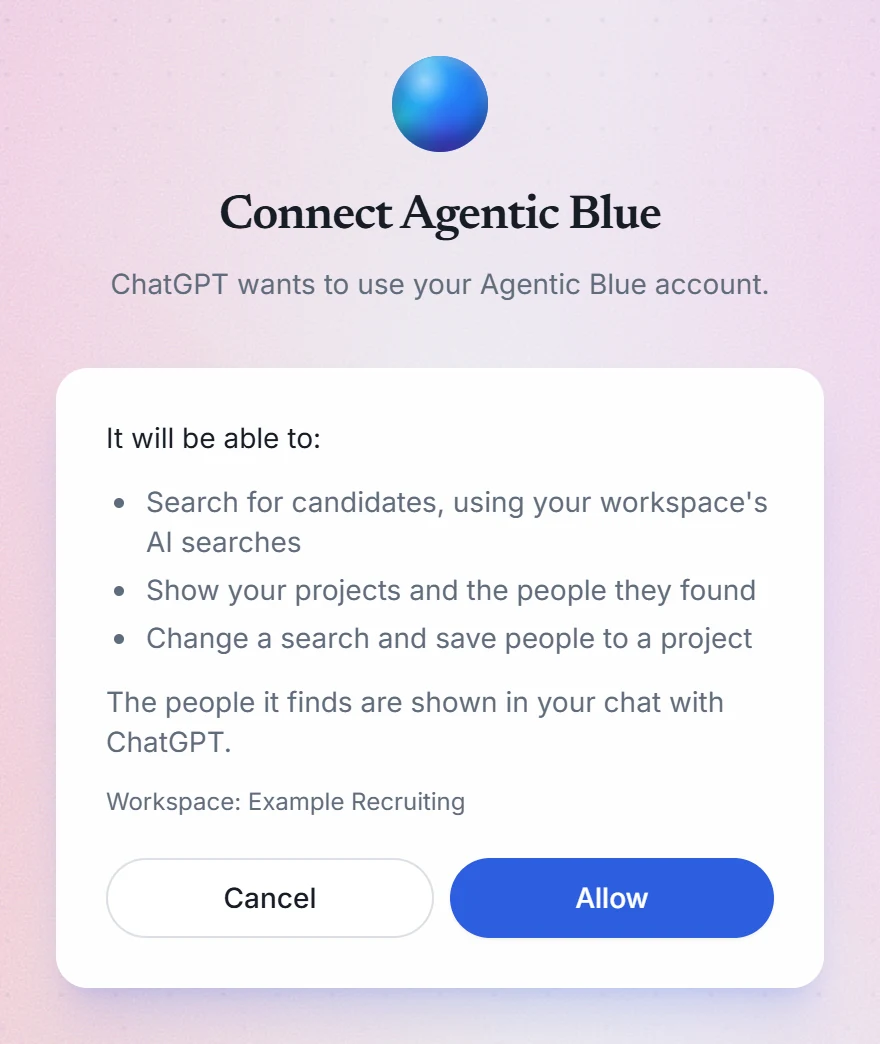
- Sign in to Agentic Blue when ChatGPT sends you there, check the workspace shown, and choose Allow.
- In a new chat, pick Agentic Blue and describe the role you are hiring for.
Your ChatGPT plan and, on a business plan, your workspace admin decide whether custom servers can be added.
Using it
A search takes a minute or two. If the brief leaves the job or the place unclear, the chat asks you one question first. The people found come back ten at a time as cards: open someone’s LinkedIn profile, save them, or move to the next page. In apps that do not show cards, such as Claude Code, the same results come back as text.
New to Agentic Blue? Start on the home page, or see what each plan includes on the pricing page.
If something goes wrong
- The chat says Agentic Blue is not connected, or asks you to sign in. Open your chat app’s connector settings, choose Agentic Blue, connect again and choose Allow. A connection that goes unused for 30 days also ends this way.
- “This account has no Agentic Blue workspace yet.” Finish signing up at agenticblue.ai with the email you sign in with, then connect again.
- “Candidate search is not turned on for this Agentic Blue workspace.” Email hello@agenticblue.ai to have it turned on.
- You have used all of the month’s AI searches. The answer says when they reset. Reading the people a search found, your projects and your Talent Pool still works and uses none.
- “The day’s search limit was reached.” Searches can run again after the time it gives.
- No one found yet. A search takes a minute or two. Ask for the people again in a moment.
- “Something went wrong on Agentic Blue’s side.” Try again in a minute. If it keeps happening, email hello@agenticblue.ai with what you asked and when. To report a security problem, see our security contact.
Disconnect and delete your data
You can disconnect Agentic Blue from your chat app at any time. Disconnecting deletes nothing in Agentic Blue, so this section also says what you can delete there.
In Claude
Open Customize, then Connectors, and choose Agentic Blue under Your connectors. Choose Disconnect to sign Claude out of Agentic Blue, or choose Remove from its three-dot menu to take it off your account.
In ChatGPT
On chatgpt.com, open Plugins, choose Agentic Blue, and disconnect or uninstall it. On a business plan, your workspace admin may manage this for you.
In Gemini
If you connected Agentic Blue in Gemini, open Settings on gemini.google.com, then Connected Apps. Under Custom apps, turn Agentic Blue off to disconnect it, or choose More details, then Remove app.
If Gemini answers as though Agentic Blue sent nothing back, choose 3.1 Pro from the model menu beside the message box, then ask again.
What disconnecting does
- The chat app can no longer search or save with your Agentic Blue account. To use it again, connect and choose Allow again.
- What you did from the chat stays in Agentic Blue: your searches stay in your projects, with the people you saved and any notes you added.
- Results already shown in a conversation stay in the chat app, under its own terms, until you delete that conversation there.
Delete data in Agentic Blue
- Someone you saved. Open the project’s Saved tab, open the person, and choose Delete Data at the end of their notes. Their CV, notes and history are deleted for good. Only a workspace admin sees this.
- A project. Open it, choose the … button beside its name, then Delete. This deletes the project and its list of saved people, and cannot be undone. Each person’s data, such as their notes, stays in your workspace until you delete it as above, so do that first. Archive, in the same menu, moves a project out of your active projects and deletes nothing.
- Your whole workspace. A workspace admin can download everything it holds from Settings, then Workspace Data, then Export All Data. In the same place, Close Workspace asks us to close it, and we confirm by email. Once it is closed, nobody in it can sign in, a connected chat app stops working at once, and an admin can still export everything for 30 days. After that, we delete it within 60 days, unless the law requires us to keep it.
- Anything else. To ask us to delete your workspace’s data, or for anything you cannot do yourself, email hello@agenticblue.ai. Our Terms of Service and Privacy Policy say what we keep and for how long.
Questions
Does it cost anything extra?
No. Searches from Claude or ChatGPT use the AI searches your Agentic Blue plan already includes, the same as a search in the app.
Do I need an Agentic Blue account?
Yes. When you connect, you sign in to Agentic Blue. If you are new, you can sign up on the way and come back to finish connecting.
Where do the people I save go?
Into the search project in your Agentic Blue workspace, with what their profile shows against your requirements as a note, exactly as when you save someone in the app.
What does the chat app see?
The people a search shows you appear in your conversation, so that conversation follows your chat app’s own terms. Agentic Blue never asks for your LinkedIn login, and you can disconnect at any time from the chat app’s connector settings.